The Driver App has two workspaces. Driver holds your trips and availability for the day. Admin holds the company tools your role allows. Ask the administrator to check your access if a tool you need is missing.
Switch between Driver and Admin
The header shows your company name and Mode. If you have an active driver profile and admin access, tap Mode and choose Driver or Admin. Otherwise, Mode shows the one workspace you have. An account with admin access but no active driver profile opens in Admin.
Driver mode has Today, Trips, your availability status, Insights, and Profile. Before starting a shift or ride, follow the vehicle and availability setup. Business access alone does not make you an active driver.
Your ride and any queued clock out continue while you work in Admin. On iPhone, Overview shows Your trip is in progress during a ride; tap Return to Driver to go back to Today.
Keep the active ride in view
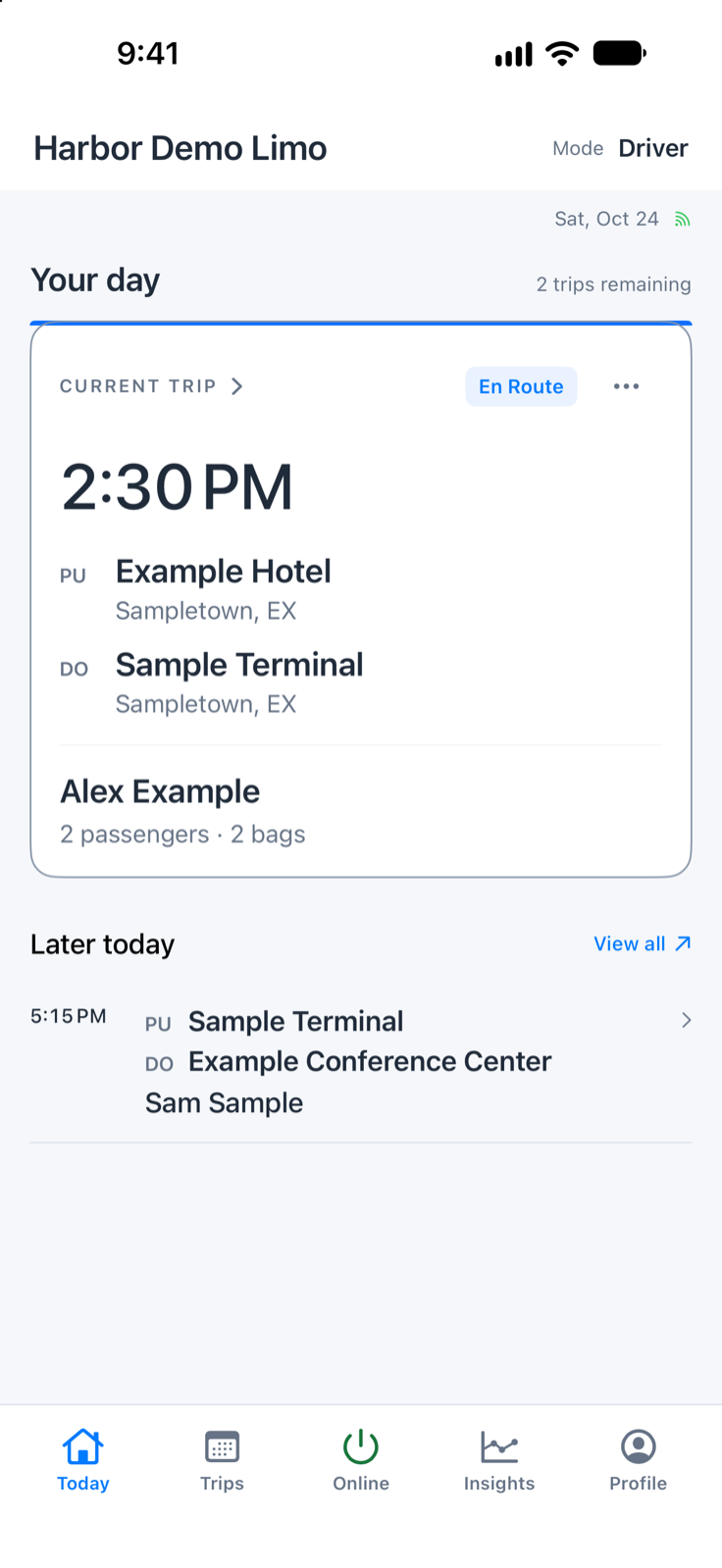
On iPhone, the ride in progress leads Your day on Today as the CURRENT TRIP card. It shows the status, pickup time, route, passenger, and price when your role can see pricing. Tap the card for ride details. Its … menu holds:
- View ride details and the next ride action, such as I’m On Scene or Passenger Picked Up.
- Show Name Card at the pickup, and Report No Show when it’s allowed.
- Add Stop (not for hourly trips), Call passenger, Text passenger, and Open navigation.
- Cancel ride.
On Android, Active Rides appears above Your day with the active ride card. Use its main button for the next step, plus its buttons to call, text, navigate, show the name card, or report a no-show. Its menu has View ride details, Open navigation, and Cancel ride.
Cancelling or reporting a no-show can charge a fee. Read the fee confirmation before continuing; a cancellation can’t be undone. New booking is hidden during the ride. For the stage actions in ride details, see Trip actions.
Needs Attention on Today
Users with dispatch access see a Needs Attention bar on Today when bookings need confirmation or a driver. It opens the ride directly when only one needs attention, or the matching Dispatch queue when several do. Follow it instead of searching the whole schedule again.
Admin tabs and who sees them
| Tab | Who sees it |
|---|---|
| Overview | Everyone with admin access |
| Dispatch | Users with dispatch access |
| Fleet | Tenant Admin or Dispatch access |
| Payments | Tenant Administrator or Billing access |
| Business | Everyone with admin access; company tools need Tenant Admin access |
On iPhone, the tabs stay at the bottom of the screen. On Android, Overview is the Admin home screen, and Dispatch, Fleet, Payments, and Business open as full screens; go back to return. Business replaces the earlier Operations → Manage Business.
Overview
Today at a glance shows Company trips for dispatch users and Vehicles with drivers for fleet users. Users with neither see Business (Company pricing and settings) or Payment center instead. Tap a card to open that tool. Pull down to refresh on iPhone, or tap Refresh on Android.
Needs attention shows:
- Confirm trips (awaiting confirmation) and Assign drivers (no driver assigned), for dispatch users. Each opens its Dispatch queue.
- Review payments (completed and no-show trips), for payment users. It opens Payments.
New booking appears on Overview when you can create bookings and have no ride in progress. See Create bookings.
Fleet
Fleet (People & vehicles on iPhone) lists the company’s vehicles and who drives them. To add a vehicle, use Add vehicle on iPhone or Add on Android.
Select a vehicle (Manage on iPhone) to see its actions:
- Set as my vehicle assigns it to you. If another driver has it, they’re unassigned.
- View full details shows specs, VIN, and ownership. Use Add Photo, Change Photo, or Remove Photo for the vehicle photo.
- Reassign driver assigns another driver, or Leave unassigned.
- Release current vehicle appears for your own vehicle. You’ll need to assign a vehicle again before starting work.
Tenant Admins also manage drivers: open the Drivers section on iPhone or Drivers in the top bar on Android, then use Add Driver or Add Myself. To start driving yourself, see If the operator also drives.
Payments
Payments lists completed and no-show rides across the company from the last 30 days (Ride payments on iPhone). Filter by All, To collect, Paid · Needs closing, or Office closes, then select a ride to review its payment. Payment actions can charge the customer or close the ride. Check the balance and payment method first, and confirm an unclear result with the office before trying again.
Business
On iPhone:
- Tenant Admins see Pricing; Company (Company and Open Limo Platform Terms); Customers (Customers and Individuals); and Payment settings.
- Everyone sees My account and Sign out.
On Android:
- Tenant Admins see Company, Open Limo Platform Terms, Pricing, Customers, Payment settings, and Individuals. Vehicles appears with fleet access.
- Everyone sees My account, Start Driving when offered, and Sign out.
What each area does:
- Company: company details, branding, and Locations. Use Add location to add a company location, up to your plan’s limit.
- Pricing: basic rates and access to advanced pricing. Review all rates and vehicle choices before saving, and use the company’s normal pricing review before applying new prices to live bookings.
- Customers and Individuals: customer records, contact details, pricing defaults, and saved Addresses. See Passengers and contact import.
- Payment settings: Accepted payment methods (keep at least one enabled), Card preauthorization when cards are accepted, and the Card processing status. Changes apply to the company’s bookings. Card processing is read-only here; gateway setup is managed in Backoffice.
Sign out from the driver Profile or from Admin → Business.
Review Platform Terms
When Terms need an administrator’s action, a banner reads Platform Terms require acknowledgement or New Platform Terms are ready to review. It appears in Business on iPhone and at the top of the screen on Android. Open Business → Open Limo Platform Terms and check the organization shown. An authorized administrator can choose Review and acknowledge current Terms or Review upcoming Terms, depending on the available action.
The review opens on Open Limo’s hosted page. Read the terms there and only acknowledge them if you are authorized to act for that organization. Return to the app to see the refreshed status; use Refresh status if necessary.
Review warnings and booking changes
Dispatch-enabled drivers can open Warnings & Review from ride details. Depending on the booking and phone, the entry may be labeled Review booking & warnings or Booking warnings.
Booking warnings appears only after unresolved warnings are found. If a warning check fails, use Retry warning check on iPhone or Retry on Android. Review booking remains available for a pending booking even when there are no warnings.
- Read the advisory warnings and check the trip details.
- After dealing with a warning, use Mark reviewed. Load more warnings if offered.
- Use Mark all warnings reviewed only when you intend to mark every unresolved warning on the booking, including warnings beyond the current page.
- If the booking is pending review, compare each Before and After value. If no changed fields are supplied, check the full booking details before deciding.
- Choose Accept booking when the booking is correct, or follow the rejection action only when cancellation is intended.
Reject and cancel booking cancels the booking. It does not simply dismiss the warning or decline one edited field. Read and confirm the cancellation message before proceeding.
The app refreshes access and booking state before saving a decision. If someone changes the booking while you are reviewing it, review the new information before deciding again. If the result of a decision is unclear, reload the booking and confirm its status before repeating the action.
If access or a queue looks wrong
Check the signed-in company, active driver profile, and permissions. Refresh the relevant screen. If an action disappears after permissions change, contact the administrator instead of trying to act through an older open screen.
For passenger setup, see Passengers and contact import. For your own credentials and review status, see Compliance Documents.