A customer account holds the customer relationship: pricing, booking policy, billing, and associated people. In Back Office, these records are called Customers. An individual is a person who travels or books; a staff user is someone who works in your Back Office.
Before you start
Have the customer’s name, phone number, billing email, account type, and priority. You also need a suitable active rate plan from Studio. The New Customer form requires a rate plan, and an inactive plan cannot be assigned.
If no suitable plan is available, complete pricing setup before returning here. Check the correct tenant and existing customer list first.
Create a customer
- Open CRM → Customers, search for the customer, and choose New Customer if they are not already listed.
- Enter the Name your dispatch and billing teams will recognize.
- Choose Customer Type: Corporate, Partnership, or Personal. Match the relationship you are setting up.
- Select Priority. Enter Phone Number, including the country code, and Billing Email.
- Select the agreed Rate Plan and save. Name, customer type, priority, phone, billing email, and rate plan are required.
- Reopen the customer and check the saved details and pricing plan.
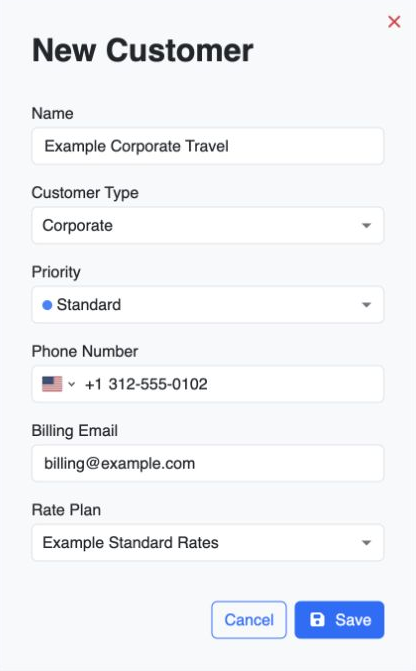
For example, the fictional “Example Corporate Travel” can be a Corporate customer using an agreed corporate rate plan, with individual travelers linked as employees or guests.
Finish the account for your workflow
The following sections depend on how the customer will book and pay:
| Section | What to set up |
|---|---|
| Employees and Guests | Link the individual people who belong to or travel on the customer account. |
| Departments | Add departments when the customer needs departmental organization. Create them before assigning individuals to them. |
| Addresses | Store regularly used pickup or destination addresses. |
| Booking Policy | Review the booking rules that should apply to this customer. |
| Billing | Review what the customer owes, their invoices and pro forma invoices, the billing contact, and the agreed payment arrangement. Available methods depend on tenant payment settings. |
| Notes | Record useful customer instructions for your team, up to 600 characters. |
Creating a customer does not by itself configure their payment arrangement or give a person a customer-app login. Add people using individual setup. Add dispatchers and other staff through Team & Permissions.
Review the Billing tab
The Billing tab replaces Wallet & Billing.
- The cards at the top show Balance Due, Past Due, Available Credit, and Last Payment. Balance Due replaces the Outstanding Balance card that was in the customer header.
- Invoices, Pro Forma, and Activity list this customer’s documents and collection activity. Activity also offers Log activity and Send statement; see Collections.
- Billing contact holds a name, email, and optional phone. That person is copied on every invoice and pro forma invoice emailed to the customer, and doesn’t need to be an employee.
- Payment settings lists the allowed methods and saved cards. Select an active Default badge to remove the default. A corporate card limited to departments lists those departments. A Direct billing setup whose start date has passed can be saved again.
Set a default cancellation policy
Edit the customer’s details and choose a Default Cancellation Policy from the policies in the customer’s rate plan, or None. New bookings use it unless the passenger or booker has a default of their own. Changing the Rate Plan clears the default, so choose one again after saving.
Cards on the customer’s Bookings tab show each booking’s cancellation policy and where it came from, such as Account default. Policies themselves are set up in Studio.
You are ready when
You can find the saved customer in CRM, and its rate plan, billing contact, and required booking or payment arrangements match the agreement. Link the people in the next Individual setup step, then check the complete customer selection and price during Your first booking.
If you get stuck
- The Rate Plan list is empty: check Studio access, the selected tenant, and whether a suitable plan exists and is active.
- The chosen plan is rejected: check its active state in Studio before assigning it again.
- A payment method is unavailable: review Settings → Payments and the methods enabled for this tenant.
- You meant to add another transport operator: use CRM → Affiliates and the affiliate workflow.
Use activation codes for employees
Open the customer’s Employees tab and choose Activation Codes to open its panel. Codes are not on the Billing tab. When creating a code, optionally select a Department from that customer’s departments. Review the code’s intended scope before sharing it through your approved customer process.